How to Turn on Ransomware Protection on Windows 10
How to turn on ransomware protection on Microsoft Windows 10? This guide dives deep into securing your system from the insidious threat of ransomware. We’ll explore built-in Windows Defender features, third-party solutions, firewall configurations, and crucial steps to prevent attacks. Protecting your data is paramount, and this comprehensive approach will equip you with the knowledge to effectively safeguard your Windows 10 PC.
Ransomware attacks are a growing concern, targeting individuals and businesses alike. Knowing how to proactively protect your data is essential in today’s digital landscape. This guide will provide a clear roadmap for enabling robust ransomware protection on your Windows 10 system, covering everything from simple setup to advanced configurations. We’ll explain how to leverage Windows’ built-in tools, compare third-party options, and fine-tune your firewall for optimal security.
Introduction to Ransomware Protection
Ransomware is a type of malicious software designed to encrypt a victim’s files and demand payment for their release. This malicious activity can severely cripple individuals and organizations, disrupting operations and causing significant financial losses. The impact on Windows 10 systems can range from data loss to complete system incapacitation, making proactive measures for protection crucial.Proactive measures against ransomware are essential to safeguard your Windows 10 system and data.
Implementing robust security protocols, including regular backups, up-to-date software, and reliable security solutions, significantly reduces the risk of falling victim to a ransomware attack. Failure to address these risks can result in significant financial and operational disruptions.
Ransomware Types and Characteristics
Ransomware attacks manifest in various forms, each with distinct characteristics. Understanding these variations helps in developing tailored defense strategies. Some common types include encrypting ransomware, which locks files; locker ransomware, which restricts access to the entire system; and doxing ransomware, which threatens to publish sensitive data if a ransom isn’t paid. The specific tactics and techniques employed by attackers vary, requiring a multi-layered approach to security.
Common Symptoms of a Ransomware Attack
Recognizing the early signs of a ransomware attack on your Windows 10 system is vital for swift remediation. This early detection is critical to minimizing the potential damage.
| Symptom | Description | Potential Impact |
|---|---|---|
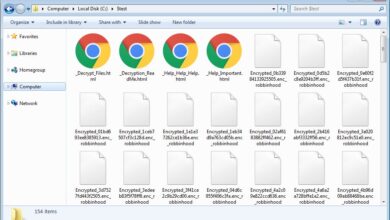
| Encrypted Files | Files with a .locked, .encrypted, or similar extension, or files that appear corrupted or inaccessible. | Data loss, inability to access critical documents or applications. |
| Ransom Note Display | A message demanding payment for the decryption of your files, often appearing as a pop-up window or within a specific folder. | Financial loss, potentially extensive disruption of business operations. |
| System Slowdown or Instability | Unusual slowdowns, crashes, or other system performance issues that may indicate malicious processes are running. | Potential for further data compromise or system damage, hindering productivity. |
| Suspicious Processes | Unfamiliar or unexpected processes running on your Windows 10 system. | Possibility of malicious activity, including data theft or encryption. |
| Unusual Network Activity | Unexpected network connections or data transfers, particularly to unknown or suspicious servers. | Possible data exfiltration or communication with malicious command-and-control servers. |
Built-in Windows Defender Security Features
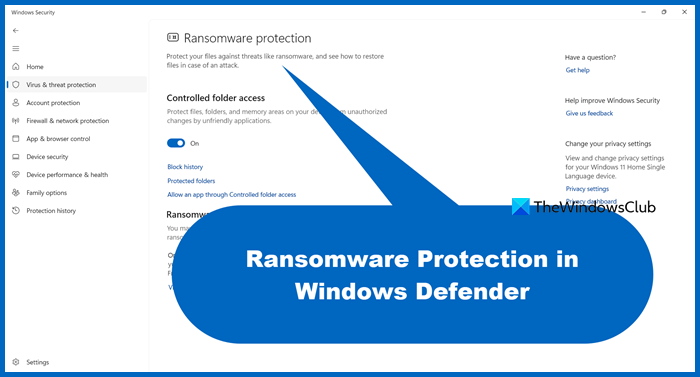
Windows Defender, the built-in security solution in Windows 10, plays a crucial role in protecting your system from ransomware attacks. It provides a comprehensive suite of security tools that work together to detect and prevent malicious software, including ransomware. This layer of defense significantly enhances the overall security posture of your computer.Windows Defender isn’t just a static security measure; it’s a dynamic system constantly evolving to counter emerging threats.
This constant adaptation, coupled with the proactive nature of its features, makes it a valuable tool in the fight against ransomware.
Windows Defender’s Role in Preventing Ransomware
Windows Defender acts as a primary line of defense against ransomware. Its real-time protection actively monitors system activities for suspicious behavior, including file modifications and potentially malicious code execution. By identifying and blocking these activities, it can prevent ransomware from encrypting your files and taking control of your system. This proactive approach significantly reduces the risk of falling victim to ransomware attacks.
Automatic Updates and Their Significance
Regular automatic updates are vital for maintaining the effectiveness of Windows Defender. These updates frequently incorporate security patches and improvements, addressing vulnerabilities that attackers might exploit. Without these updates, your system could become susceptible to known threats, making it a target for ransomware. By keeping Windows Defender up to date, you ensure it has the latest tools to recognize and counter emerging ransomware techniques.
Enabling Real-Time Protection in Windows Defender
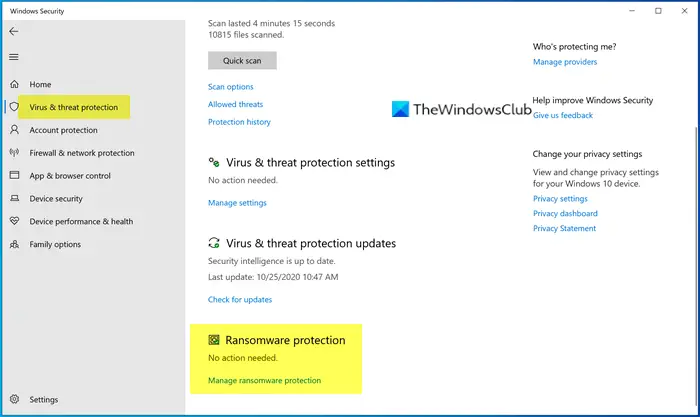
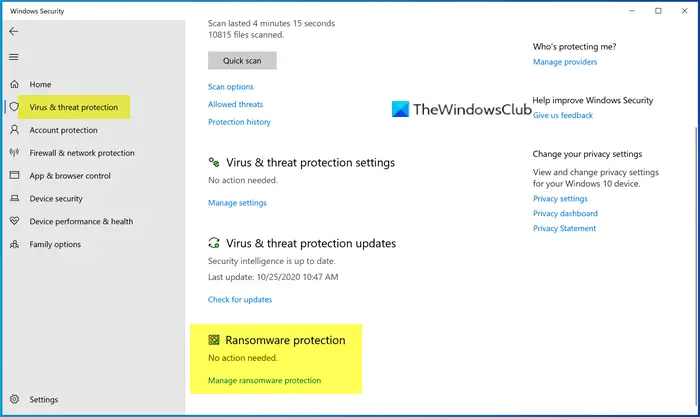
To maximize the protection offered by Windows Defender, enabling real-time protection is essential. This feature constantly monitors your system for suspicious activities, blocking threats in real-time. Enabling real-time protection is a straightforward process. First, open Windows Security. Then, navigate to Virus & threat protection.
Under Virus & threat protection settings, ensure “Real-time protection” is turned on.
Comparison of Windows Defender Versions
| Feature | Description | Version Compatibility |
|---|---|---|
| Real-time Protection | Constantly monitors for suspicious activity, blocking threats as they arise. | All versions |
| Cloud-based protection | Analyzes files against a vast database of known malware in the cloud, enhancing detection capabilities. | All versions |
| Automatic Updates | Regularly updates security definitions and features to address emerging threats. | All versions |
| Scheduled Scans | Performs scans at predefined intervals to identify and eliminate threats that might have slipped through real-time protection. | All versions |
| Ransomware Protection | Specifically designed to identify and prevent ransomware attacks. | All versions (included in real-time protection). |
Note: The table above provides a general comparison. Specific features and functionalities might vary slightly depending on the exact version of Windows Defender. Always refer to the official Microsoft documentation for the most accurate information.
Third-Party Security Software Options: How To Turn On Ransomware Protection On Microsoft Windows 10
While Windows Defender provides robust ransomware protection, supplementing it with a third-party solution can enhance your defenses. Third-party security software often offers more advanced features, customized configurations, and potentially broader coverage than the built-in tools. This section delves into the advantages and disadvantages of these solutions, compares popular options, and presents reliable vendors.Third-party security software, though potentially offering increased protection, might introduce a layer of complexity and potentially conflicts with Windows Defender.
Carefully evaluate your needs and choose a solution that aligns with your technical expertise and desired level of protection.
Pros and Cons of Third-Party Solutions
Third-party anti-ransomware solutions offer several benefits but also come with potential drawbacks. Weighing these factors is crucial for a well-informed decision.
- Pros: Enhanced features, customizable settings, potential for deeper threat detection, and broader coverage beyond standard Windows Defender capabilities. Some solutions may offer specialized protection against emerging ransomware strains.
- Cons: Potential conflicts with Windows Defender, increased system resource consumption, and the need for additional software management and updates. Incorrect or poorly configured third-party solutions can also create vulnerabilities or slow down your system.
Comparison of Popular Anti-Ransomware Programs
Several reputable third-party programs provide anti-ransomware capabilities. A comparison across features, pricing, and user experience can help in choosing the right fit.
- Sophos Home Premium: Offers comprehensive security features including real-time protection against ransomware attacks, file encryption protection, and automatic backups. The program also includes a wide range of other security features for protecting your entire system.
- Bitdefender Antivirus Plus: Known for its robust malware detection and removal capabilities. This solution includes real-time protection, anti-ransomware features, and a user-friendly interface. Bitdefender is also known for its excellent detection rates and fast response to emerging threats.
- Kaspersky Anti-Ransomware: This specialized solution focuses on preventing and mitigating ransomware attacks. It typically provides advanced threat detection and response capabilities, often integrating with other Kaspersky security products.
Reputable Third-Party Security Vendors
Selecting a reputable vendor is crucial for a reliable and secure solution. Here are some highly regarded names in the industry.
- Sophos: A long-standing and respected provider of comprehensive security solutions.
- Bitdefender: Known for its robust malware detection and removal capabilities.
- Kaspersky: A well-established provider of security software with a focus on malware protection, including ransomware protection.
- McAfee: A long-time security provider offering various security products including anti-ransomware solutions.
Installation and Configuration Steps
Installing and configuring third-party anti-ransomware software typically follows a standard process.
- Download: Download the installer from the vendor’s website. Verify the website’s authenticity to avoid malicious downloads.
- Installation: Follow the on-screen instructions to complete the installation. Carefully review any prompts about installation location and user privileges.
- Configuration: Customize the settings to match your needs and preferences. This might involve adjusting scan schedules, exclusions, and other security settings.
- Testing: Run a full system scan to ensure the solution is functioning correctly. Verify that it’s properly integrated into your system and not interfering with other software.
Configuring Firewall Settings for Enhanced Protection
The Windows Firewall acts as a crucial first line of defense against ransomware attacks. It controls the flow of network traffic, preventing unauthorized connections that could potentially introduce malicious software. Proper configuration of firewall rules can significantly reduce the risk of ransomware infiltration. Understanding and adjusting these rules can greatly enhance your system’s security posture.
The Role of Windows Firewall in Blocking Ransomware
The Windows Firewall monitors all incoming and outgoing network traffic. It acts as a gatekeeper, scrutinizing connections to ensure they originate from trusted sources. By default, the firewall blocks most unsolicited connections, effectively preventing many ransomware attempts that rely on unauthorized access. Ransomware often exploits vulnerabilities in applications or services to gain entry into a system. The firewall helps prevent this by limiting these avenues.
A properly configured firewall significantly reduces the potential entry points for ransomware.
Want to beef up your Windows 10 security against ransomware? Enabling ransomware protection is a crucial step. Fortunately, it’s straightforward. However, understanding broader security issues, like the recent vulnerabilities in Azure Cosmos DB, is equally important. Checking out the Azure Cosmos DB Vulnerability Details can help you see the bigger picture.
Ultimately, hardening your Windows 10 defenses, including ransomware protection, is key to overall system security.
Configuring Inbound and Outbound Rules
To enhance ransomware protection, adjusting inbound and outbound rules in the Windows Firewall is essential. Inbound rules control network traffic entering your system, while outbound rules control traffic leaving your system. Ransomware often attempts to communicate with command-and-control servers located on the internet, which can be blocked by properly configured outbound rules. Similarly, inbound rules can prevent ransomware from establishing connections to the outside world to download additional malicious components.
Different Ways to Adjust Windows Firewall Settings
Various options exist for customizing Windows Firewall settings. These include creating custom rules to allow or block specific applications or ports, or modifying existing rules to tailor them to your security needs. Advanced users can use PowerShell or Group Policy to automate and manage firewall configurations. Understanding and applying these methods allows for highly granular control over network traffic, significantly enhancing security.
Implementing these advanced techniques can often prevent even sophisticated ransomware attacks.
Firewall Rules and Their Impact on Ransomware Prevention
| Rule Type | Description | Effect on Ransomware |
|---|---|---|
| Block all incoming connections to specific ports (e.g., ports used by known ransomware) | This prevents ransomware from establishing connections to download malicious components or communicate with command-and-control servers. | High |
| Block all outgoing connections to known malicious IP addresses or domains. | This prevents ransomware from communicating with malicious servers, limiting its ability to spread or receive instructions. | High |
| Allow specific applications or services with restricted network access | This allows legitimate programs to communicate while preventing ransomware from using them for malicious activity. | Medium |
| Enable real-time monitoring and logging of firewall activity. | This provides detailed insights into network traffic, helping to detect and respond to suspicious activities related to ransomware attacks. | High |
Ransomware Protection through Software Updates
Staying ahead of ransomware threats requires a proactive approach, and one of the most crucial steps is keeping your Windows 10 system up-to-date. Regular updates patch vulnerabilities that malicious actors could exploit. This proactive approach significantly strengthens your defenses against ransomware attacks.Keeping your Windows 10 system updated is vital for maintaining its security and functionality. Updates often include crucial security patches that address vulnerabilities, making your system less susceptible to exploitation by ransomware and other malicious software.
Significance of Windows 10 Updates
Regular updates are essential to maintain the security of your Windows 10 system. These updates often contain crucial security patches that close potential entry points for ransomware. Without these updates, your system remains vulnerable to known exploits.
How Updates Address Security Vulnerabilities
Updates address security vulnerabilities that ransomware exploits by providing fixes for identified weaknesses in the system’s code. This patching process strengthens your defenses against known threats and mitigates potential risks. Think of it like installing reinforced doors and windows on your home to prevent intruders.
Ensuring Windows 10 is Up-to-Date
To ensure your Windows 10 system is up-to-date, follow these steps. Automatic updates are the easiest way to ensure you are running the most secure version.
- Enable Automatic Updates: The simplest method for keeping your system up-to-date is to enable automatic updates. This ensures that critical security patches are installed without any user intervention.
- Check for Updates Manually: If automatic updates are not enabled, or you want to ensure all available updates are installed, checking for updates manually is another option.
Manually Checking for and Installing Windows Updates
Manually checking for and installing updates can provide you with more control over the update process.
- Open the Settings App: Click the Start button and select Settings from the list of options.
- Navigate to Update & Security: In the Settings window, navigate to the Update & Security section.
- Check for Updates: Within the Update & Security settings, look for the option to check for updates. Click on this option to initiate the update search.
- Install Available Updates: If any updates are found, they will be listed. Follow the on-screen instructions to install the updates.
Data Backup and Recovery Strategies
Ransomware attacks can cripple your system, locking you out of your critical data. Without a robust backup strategy, recovery can be lengthy and costly, potentially causing significant financial and operational disruptions. A proactive approach to data backups is essential for minimizing the impact of such attacks.Effective data backups are not just about creating copies; they are about creating a reliable recovery plan.
This includes understanding the various backup methods, their strengths and weaknesses, and the importance of maintaining backups in secure, accessible locations. A well-structured backup and recovery strategy is a crucial component of any comprehensive cybersecurity plan.
The Crucial Role of Data Backups
Data backups act as a safety net, providing a readily accessible copy of your critical data in case of ransomware or other data loss events. They are the cornerstone of ransomware recovery, allowing you to restore your systems and operations swiftly and minimize downtime. The time and resources required to recover from a ransomware attack can be significantly reduced with a sound backup strategy.
Different Methods for Creating Regular Backups
Several methods exist for creating regular backups of critical data. These include:
- Full Backups: A full backup copies the entire dataset. This is a comprehensive approach, but can be time-consuming, especially for large datasets. It’s typically used as the foundation for other backup types.
- Incremental Backups: These backups only copy the data that has changed since the last full or incremental backup. This method is more efficient than full backups for large datasets, as it saves storage space and time.
- Differential Backups: Similar to incremental backups, differential backups copy only the data changed since the last full backup. The key difference is that a differential backup does not discard any data from previous incremental backups.
- Cloud-Based Backups: These solutions utilize cloud storage to automatically and regularly back up data, often integrating with other security tools.
Each method has its own advantages and disadvantages, depending on the size of your data, the frequency of changes, and the required recovery time objective (RTO).
Importance of Storing Backups Offsite or in the Cloud
Storing backups offsite or in the cloud is paramount for ransomware recovery. If your primary location is compromised, having backups in a separate, secure location ensures data availability. This separation is critical to avoid the risk of the same attack compromising both the original data and the backup. Offsite storage or cloud backups act as a safeguard against localized disasters, like fires or floods, as well as cyberattacks.
Examples of Cloud-Based Backup Services
Numerous cloud-based backup services offer reliable and secure solutions for backing up data. These include:
- Dropbox: A popular cloud storage service offering backup capabilities for files and folders.
- Google Drive: Another widely used cloud storage platform with backup features for various types of files.
- Microsoft OneDrive: A cloud storage service from Microsoft, offering backup solutions for personal and business data.
- Specialized Backup Solutions: Many third-party companies offer dedicated cloud backup services specifically designed for business needs, often with enhanced security features and management tools.
These are just a few examples, and the ideal service depends on specific needs and budgets. Thorough research and consideration of service features, security protocols, and customer support are crucial for making the right choice.
Identifying and Removing Ransomware
Ransomware attacks are a serious threat to individuals and organizations, often resulting in significant financial losses and data breaches. Early identification and swift action are crucial in minimizing the impact of such attacks. Understanding common attack methods and the steps to take if infected can significantly reduce the damage.Ransomware infections often exploit vulnerabilities in software or operating systems, tricking users into clicking malicious links or downloading infected files.
These attacks can take many forms, from phishing emails to malicious advertisements. By recognizing the patterns of these attacks, users can protect themselves.
Common Ransomware Attack Methods, How to turn on ransomware protection on microsoft windows 10
Ransomware attacks often use deceptive tactics to gain access to systems. Knowing these methods is vital for prevention.
- Phishing Emails: These emails often contain malicious attachments or links that, when clicked, download ransomware onto the system. Phishing emails frequently mimic legitimate organizations, making them convincing. Users should be wary of emails asking for sensitive information or containing unexpected attachments.
- Malicious Websites: Visiting compromised websites can lead to the download of ransomware. These websites often display misleading content, masquerading as legitimate sites. Users should exercise caution when visiting unfamiliar websites.
- Malvertising: Malicious advertisements can be embedded on legitimate websites. Clicking on these ads can trigger the download of ransomware. Users should be cautious about clicking on advertisements, especially those that seem unusual or suspicious.
Suspecting a Ransomware Infection
Recognizing the signs of a ransomware infection is essential for prompt action. The following are indications of a possible infection:
- Unusual System Behavior: Noticeable changes in system performance, such as slowdowns or unusual pop-up messages, might signal an infection.
- Encrypted Files: If files on your computer have been encrypted and cannot be opened, this is a strong indicator of ransomware. The files might have a new extension, or you might see a message demanding payment for decryption.
- Ransom Note: A message demanding payment for the decryption of your files is a clear sign of ransomware. These messages often appear on the screen or in a file.
Steps to Take if Infected
If you suspect a ransomware infection, immediate action is crucial. Following these steps can help contain the damage:
- Disconnect from the Network: Immediately disconnect your computer from the internet to prevent the ransomware from spreading to other devices or servers. This often involves unplugging the network cable or disabling the Wi-Fi.
- Isolate the Infected System: If possible, physically disconnect the infected device from the network and other devices to prevent further spread.
- Contact IT Support or Cybersecurity Professionals: Seek professional assistance for expert advice and guidance. They can provide tailored support based on the specific situation.
- Backup Data: If possible, create a backup of your data to a separate, secure location to prevent data loss.
Removing Ransomware from Windows 10
Removing ransomware manually can be difficult and potentially dangerous. Professional assistance is often recommended.
Important Note: Attempting to remove ransomware manually without proper expertise could lead to data loss or further complications.
Caution: Do not pay the ransom. Paying the ransom does not guarantee the recovery of your data, and it may encourage future attacks. Focus on recovering your data through backups or professional help.
Best Practices for Ransomware Prevention
Ransomware attacks are a significant threat to individuals and organizations alike, potentially crippling operations and demanding exorbitant sums for data recovery. Implementing robust preventive measures is crucial to mitigating the risk of such attacks. This section Artikels key strategies to bolster your defenses against ransomware.Effective ransomware prevention requires a multi-faceted approach, encompassing secure practices for passwords, cautious handling of files, and awareness of potential threats.
By understanding and consistently applying these best practices, you can significantly reduce your vulnerability to these malicious attacks.
Strong Passwords and Multi-Factor Authentication
Strong passwords and multi-factor authentication are essential components of a robust security posture. Weak passwords can be easily compromised, leaving systems vulnerable to unauthorized access. Implementing multi-factor authentication adds an extra layer of security, requiring more than just a password to log in. This significantly increases the difficulty for attackers to gain unauthorized access.
Want to beef up your Windows 10 security against ransomware? Enabling built-in protection is a great first step. However, understanding the intricacies of modern cyber threats, like those addressed in Deploying AI Code Safety Goggles Needed , is crucial. Even with strong ransomware protection, proactive measures like code safety analysis are essential to prevent future attacks.
So, while you’re configuring that built-in Windows 10 protection, consider the bigger picture of security and the evolving landscape of threats.
A strong password is at least 12 characters long, incorporating a mix of uppercase and lowercase letters, numbers, and symbols.
Using a password manager can help you create and store complex passwords securely, minimizing the risk of weak or reused passwords. Enable multi-factor authentication wherever possible, adding an extra layer of security that significantly enhances protection against unauthorized access. This extra security step is vital in safeguarding your accounts and sensitive data.
Cautious File Handling and Avoiding Suspicious Links/Attachments
Cybercriminals often employ social engineering tactics to trick users into downloading malicious files or clicking on harmful links. Exercise extreme caution when opening emails, clicking links, or downloading files from unknown sources. Unverified attachments or links from suspicious senders should be treated with extreme caution.
Do not open attachments or click links from unknown senders or emails that appear suspicious.
Verify the sender’s identity and the legitimacy of the request before interacting with potentially malicious content. Always exercise caution and skepticism when handling files or links from unknown sources.
Best Practices and Risk Mitigation Strategies
| Practice | Description | Mitigation Strategy |
|---|---|---|
| Strong Passwords | Employing complex, unique passwords for all accounts. | Use a password manager, create passwords with a mix of uppercase and lowercase letters, numbers, and symbols, and avoid using easily guessable information. |
| Multi-Factor Authentication (MFA) | Enabling MFA wherever possible to add an extra layer of security. | Actively enable MFA for all online accounts, especially those containing sensitive data. |
| Cautious File Handling | Exercise caution when opening emails, clicking links, or downloading files from unknown sources. | Verify the sender’s identity and the legitimacy of the request. Avoid opening attachments or clicking links from unknown senders. |
| Regular Software Updates | Keeping software and operating systems up-to-date with the latest security patches. | Actively schedule and apply software updates to address vulnerabilities and protect against exploitation. |
| Data Backup and Recovery | Creating regular backups of critical data to restore in case of ransomware attack. | Implement a robust backup and recovery strategy, including offsite backups to safeguard against data loss. |
Troubleshooting Common Ransomware Protection Issues
Ransomware attacks are a constant threat, and even with robust protection in place, issues can arise. Understanding potential problems and how to resolve them is crucial for maintaining a secure digital environment. This section details common issues encountered during ransomware protection configuration and provides practical troubleshooting steps.Troubleshooting ransomware protection often involves identifying the root cause of the problem. A systematic approach, combining technical analysis with a clear understanding of the system’s configuration, is vital for effective resolution.
Careful attention to detail and a methodical approach are essential in isolating and rectifying these issues.
Configuration Errors
Incorrect configuration settings can hinder ransomware protection. A misconfigured firewall, for instance, might allow malicious traffic to bypass the security measures. Inaccurate settings in anti-virus software can also lead to vulnerabilities.
- Firewall Misconfiguration: Incorrect firewall rules can permit malicious traffic. Ensure that the firewall’s rules block known malicious IP addresses and ports. Consult your firewall’s documentation for specific instructions on configuring these rules.
- Antivirus Software Issues: A conflict between antivirus software and other applications or system processes can lead to malfunctions. Disable non-essential programs temporarily to identify potential conflicts. Ensure that the antivirus software is updated to the latest version.
- Windows Defender Issues: Windows Defender may sometimes experience errors or become unresponsive. Running the Windows Defender troubleshooter or resetting Windows Defender settings can often resolve these issues.
Software Updates and Compatibility
Compatibility issues between operating systems and security software can be a significant cause of problems. Out-of-date software, both operating system and security applications, may lack the necessary protection against new ransomware strains.
Figuring out how to turn on ransomware protection on Microsoft Windows 10 is pretty straightforward. You can find the settings within the Windows Security app. However, while you’re safeguarding your digital assets, it’s worth considering the Department of Justice Offers Safe Harbor for MA Transactions ( Department of Justice Offers Safe Harbor for MA Transactions ) to better understand potential legal implications.
This knowledge will help you prioritize your security strategies even more effectively. Knowing how to turn on ransomware protection remains crucial for comprehensive digital defense.
- Outdated Software: Ensure that both the operating system and security software are up-to-date. Outdated software is more susceptible to vulnerabilities. Regular updates are essential to patch these vulnerabilities and add new protections against emerging threats.
- Driver Conflicts: Outdated or corrupted device drivers can sometimes cause instability in security software. Ensure that all device drivers are updated to the latest versions. Install any recommended updates from device manufacturers or Microsoft.
- Application Conflicts: Other applications might interfere with ransomware protection software. Check for conflicting programs or services that might be causing the problem. Temporarily disable or uninstall applications that might be interfering with the ransomware protection system.
Connectivity Issues
Network connectivity problems can prevent security software from performing its functions properly. Limited or interrupted network access can prevent updates, and impact real-time protection capabilities.
- Network Connectivity Problems: Verify internet connectivity. Check your network connection to ensure that the security software can access the required updates and security databases. If there are network issues, contact your internet service provider.
- Proxy Server Issues: Proxy servers might interfere with security software updates and real-time protection. Ensure that the proxy server settings are properly configured to allow access to the required resources.
Error Messages and Codes
Ransomware protection software often displays specific error messages or codes that indicate the nature of the problem. Interpreting these messages can provide valuable insights for resolution.
- Specific Error Messages: Analyze error messages displayed by the ransomware protection software. These messages often provide clues to the cause of the problem. Search online forums or the software’s support documentation for specific error codes to identify possible solutions.
Troubleshooting Guide
| Issue | Possible Causes | Solutions |
|---|---|---|
| Ransomware protection not working | Outdated software, firewall issues, conflicts with other programs | Update software, check firewall rules, disable interfering programs |
| Frequent errors during scans | Network connectivity problems, insufficient system resources | Check network connection, ensure sufficient system resources |
| Slow scan speeds | High disk activity, inadequate CPU performance | Optimize disk performance, check CPU usage |
Summary
In conclusion, safeguarding your Windows 10 system from ransomware requires a multi-layered approach. This guide has Artikeld the key steps for enabling protection, from utilizing Windows Defender to implementing third-party security measures and robust data backup strategies. Remember, proactive measures are critical to preventing ransomware attacks and ensuring the safety of your valuable data. By following the advice provided, you can significantly reduce your risk and maintain a secure digital environment.
Query Resolution
How often should I update my Windows 10 system for ransomware protection?
Microsoft releases security updates regularly to patch vulnerabilities that ransomware can exploit. It’s crucial to keep your system updated to benefit from these critical fixes. Automatic updates are highly recommended to ensure continuous protection.
What are some common signs of a ransomware attack on my Windows 10 computer?
Common signs include unexpected changes to files (like file extensions), strange pop-up messages, or notices demanding payment for data recovery. If you notice these indicators, immediately disconnect from the internet and seek professional help.
Are there free third-party security solutions to protect against ransomware?
Yes, many reputable vendors offer free anti-ransomware tools or free trials of their full security suites. Research and choose a reputable solution that aligns with your needs and budget. Remember that free options might have limited features compared to paid versions.
What if I already have a ransomware infection?
If you suspect a ransomware infection, immediately disconnect from the internet. Do not attempt to pay the ransom as it often does not guarantee the recovery of your data. Contact a cybersecurity professional or your IT support team for assistance.